
Vercel
Deploy MuseMVP to Vercel via Serverless Functions.
This guide walks you through deploying MuseMVP to Vercel.
Prerequisites
You need a Vercel account with GitHub / GitLab authorization linked.
Setup Steps
Import Repository
Log in to Vercel, click Add New Project, select your Git provider, and authorize the import of your repository.
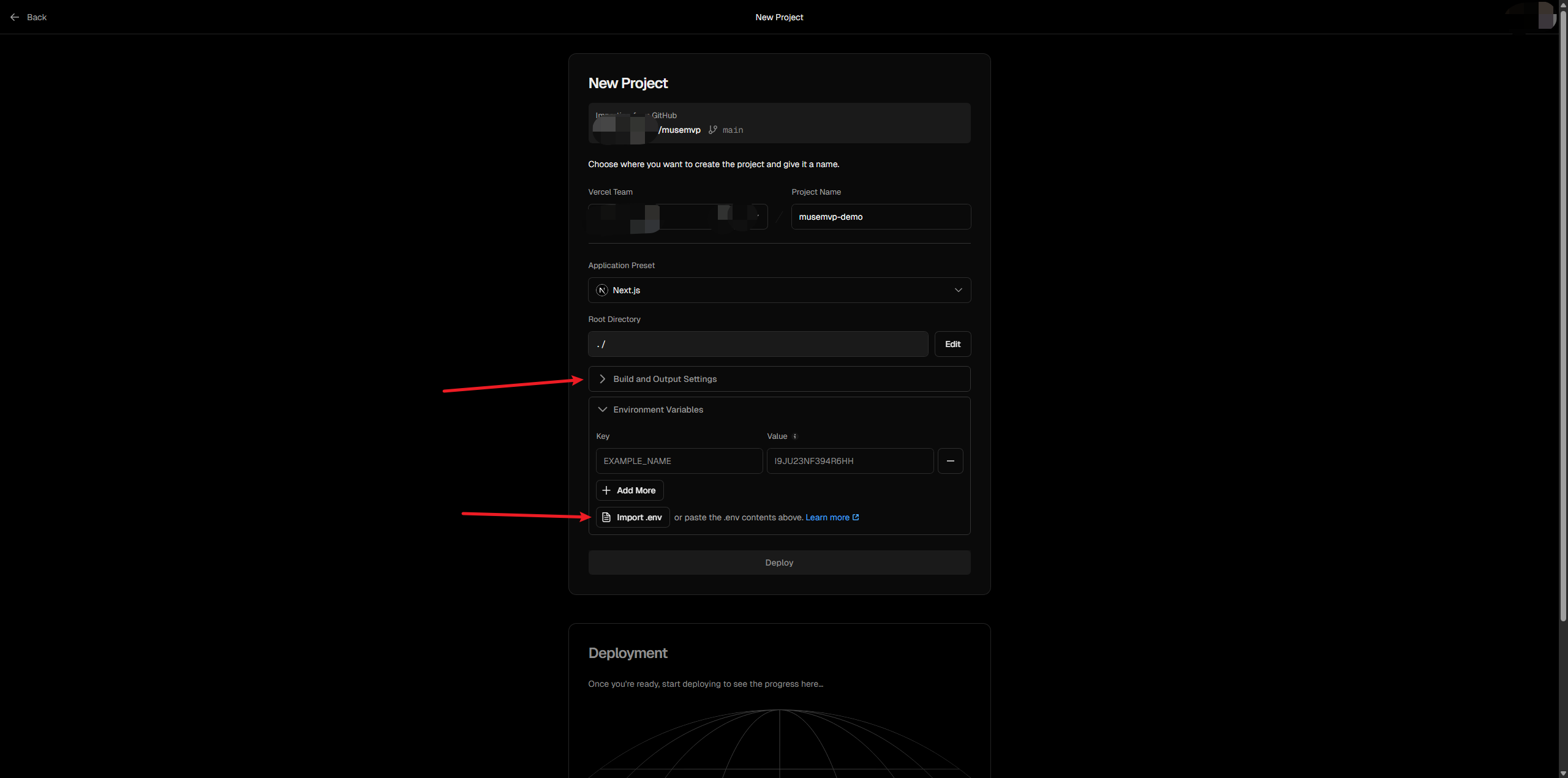
Build Configuration
Build and Output Settingscan be left at their defaults — no changes needed.- Inject environment variables via one of the following methods:
Import your local .env file directly.

Environment Variables
All environment variables are documented in your local .env file — see Quick Start / Environment Variables for details. You can import them directly, with one exception:
DATABASE_CONNECTION_STRATEGY="database_url_first"About the Database Connection Strategy
DATABASE_CONNECTION_STRATEGY=database_url_first is required for Vercel. It tells the app to use a standard direct connection instead of Cloudflare Hyperdrive at startup.
Troubleshooting
Most deployment failures are caused by missing or misconfigured environment variables — check those first.
Node Version Build Error
Go to Project Settings → Node.js Version and manually set it to 22.x.
API Route Timeout
Add a maxDuration setting in vercel.json for routes matching src/app/api/**/*.
Session Lost Immediately After Login
This is a cross-origin Cookie write failure. Verify that NEXT_PUBLIC_SITE_URL exactly matches the domain you are visiting.
If the issue persists after trying the above steps, review the Vercel deployment logs for more details.